• Company
    • About
    • News
    • Mailing List
    • Contact
  • Solutions
    • Medical Device Integration
    • Research Data Acquisition
    • OEM Data Acquisition
    • Medical Device Data System
  • Products
    • Product Comparison
    • MediCollector BEDSIDE
    • MediCollector SERVICE
    • MediCollector CENTRAL
    • MediCollector CLI
    • Cables & Accessories
    • Integration / API
    • Download
    • Order
  • Services
    • Services
    • LabVIEW
    • Project Inquiry
  • Customers
    • License Portal
  • Blog
  • Support
    • Support Request
    • Supported Devices
    • FAQ
    • Shipping & Return Policy
    • Privacy Policy
MediCollector
  • Company
    • About
    • News
    • Mailing List
    • Contact
  • Solutions
    • Medical Device Integration
    • Research Data Acquisition
    • OEM Data Acquisition
    • Medical Device Data System
  • Products
    • Product Comparison
    • MediCollector BEDSIDE
    • MediCollector SERVICE
    • MediCollector CENTRAL
    • MediCollector CLI
    • Cables & Accessories
    • Integration / API
    • Download
    • Order
  • Services
    • Services
    • LabVIEW
    • Project Inquiry
  • Customers
    • License Portal
  • Blog
  • Support
    • Support Request
    • Supported Devices
    • FAQ
    • Shipping & Return Policy
    • Privacy Policy

NEWS & UPDATES

Running MediCollector for Long Periods of Time

1/21/2020

1 Comment

 
Hello medicollectors!  In today's post, I provide some useful tips for running MediCollector for long periods of times... like for weeks, months or years.  Some of these tips utilize little known features of MediCollector which are ideal for long-term sessions.  To view these tips, please click the READ MORE link below.
Picture
  1. ​Can I get an email if an error occurs while I'm away? ​
    ​Yes. Use the email alerts function that is built-in to MediCollector.  Just go to EDIT>PREFERENCES and enable email alerts.  MediCollector will then email you when an error occurs, e.g. if someone turns off or unplugs your patient monitor!
  2. How to prevent files from getting too big? 
    When you launch your recording, just enable file splitting by selecting "New file every day (at midnight)".  By doing this, MediCollector will generate one .medi file per day.  The filename will contain the datetime for the recording.  NOTE:  This is enabled by default in the MediCollector SERVICE product, but not by default in MediCollector BEDSIDE.
  3. How do I manage lots of .medi files?
    Even with one file per day (see Pt.#2 above), you might still have a lot of files to manage.  Here's a couple tips for managing this:
    [a] 
    You can prevent disk space from getting consumed by automatically moving your .medi files to a network shared disk. This can be done with a batch file that runs every day (i.e. sometime after midnight) using the Windows Task Scheduler.  
    [b] Another way to deal with lots of datafiles is to skip the "data export" step by accessing data in your .medi files directly.
  4. What happens if my computer loses power?
    If your computer loses power it will shut down (though you might have a couple hours of battery time if you are using a laptop). After power returns, MediCollector will perform differently depending on which version you are using:
    [a] If you are using the BEDSIDE version of our product, an error will appear and the recording will stop.  You will need to manually login and launch a new session to start recording again.
    [b] If you are using the SERVICE version of our product, MediCollector will immediately start recording again when Windows launches (no login required).
    So in summary, if you require the ability to automatically resume recording after power loss, then you should be using MediCollector SERVICE.  
  5. Can MediCollector recover when cables are disconnected?
    If a cable is disconnected, MediCollector will fire an error and data collection will stop. To account for this, enable the fault tolerance function in EDIT>PREFERENCES of MediCollector. If you enable this, MediCollector will detect the error and wait for 1 minute before attempting to reconnect and resume collection. It will continually do this until it successfully resumes. So when the cable is eventually plugged back in again, recording will resume.  You will just see a gap in the data while the data stream was interrupted.
    NOTE:  This is enabled by default in the MediCollector SERVICE product, but not in MediCollector BEDSIDE.
  6. How do I keep my computer from going to sleep?
    ​Windows is typically configured to go to sleep if inactive for a period of time.  So you should configure Windows to never go to sleep.  This is done in Windows Settings.
  7. How do I prevent Windows from installing updates?
    Have you ever left MediCollector running overnight, and then returned the next day to find that MediCollector is no longer running?  I've experienced this myself.  But if you dig a little (in the Windows Event Log), you might discover that Windows decided to install updates overnight and even rebooted itself!  And what's crazy is that Windows doesn't even bother to notify you the next day.  So you have no idea what happened.  No dialog box appears saying "Windows just installed updates and rebooted itself".  To avoid this, you can disable auto-updates (in Windows Settings).  But this may not be totally possible.  Microsoft appears to have made auto-updates mandatory for many versions of Windows.  But I know you can at least postpone updates or configure them to happen on a known schedule.
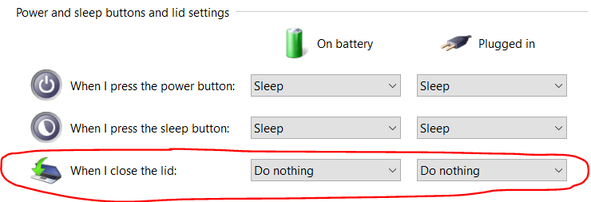
  8. Can my laptop keep running even when the lid is closed?
    The craziest things can happen while a computer is left unattended.  You might even return to find that someone has closed the lid on your laptop.  To mitigate this risk, you can configure Windows to keep running when the lid is closed.  This is done in Windows Power options as seen here.
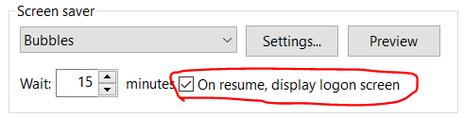
  9. How do I secure my laptop while unattended?
    So you need to leave your computer running for long periods of time ... but how do you prevent people from messing with it while unattended?  For security and privacy purposes, you should add a "password protected screen saver".  This means that after some period of time the screen-saver comes ON and requires a username/password to access the computer again.  While the screensaver is running, MediCollector will keep running!  You can add this security feature in the Screen Saver settings in Windows (see below).

Picture
1 Comment
Network Cabling link
11/27/2024 19:09:29

This article discusses the considerations for running MediCollector for extended periods, focusing on the system's stability and performance. It provides useful advice for optimizing the software to prevent potential issues, ensuring consistent data collection over time. Understanding these best practices is essential for maintaining effective operation in long-term use. For further insights, read the full post on the website.


Reply


Leave a Reply.

    Purpose

    This blog provides all the latest news and updates related to MediCollector.
    ​

    Author

    John Osborne
    Founder of MediCollector
    ​

    Archives

    December 2025
    October 2025
    May 2025
    November 2024
    June 2024
    May 2024
    January 2024
    February 2023
    September 2022
    April 2022
    February 2022
    February 2021
    January 2021
    November 2020
    October 2020
    September 2020
    February 2020
    January 2020
    December 2019
    October 2019
    June 2019
    May 2019
    March 2019
    January 2019
    June 2018
    December 2017
    November 2017
    July 2017
    January 2017
    June 2016
    May 2016

    Categories

    All
    General
    News
    Tips

    RSS Feed

857-452-1359   |   © 2017 MediCollector.  All rights reserved.  | Privacy Policy
  • Company
    • About
    • News
    • Mailing List
    • Contact
  • Solutions
    • Medical Device Integration
    • Research Data Acquisition
    • OEM Data Acquisition
    • Medical Device Data System
  • Products
    • Product Comparison
    • MediCollector BEDSIDE
    • MediCollector SERVICE
    • MediCollector CENTRAL
    • MediCollector CLI
    • Cables & Accessories
    • Integration / API
    • Download
    • Order
  • Services
    • Services
    • LabVIEW
    • Project Inquiry
  • Customers
    • License Portal
  • Blog
  • Support
    • Support Request
    • Supported Devices
    • FAQ
    • Shipping & Return Policy
    • Privacy Policy